

Change your WordPress theme from the database
Managing your WordPress themes directly from the WP Admin is typically the most straightforward approach. However, certain situations, like encountering a white screen after an update, can prevent you from logging into your WP Admin.
This guide will demonstrate how to switch your active WordPress theme to one of the default themes using the database. By doing this, you should be able to regain access to your WP Admin, allowing you to manage your site more conveniently from there.
Step 1 – Open your database in phpMyAdmin
Read our guide on how to access your database if you don’t know how to do this.
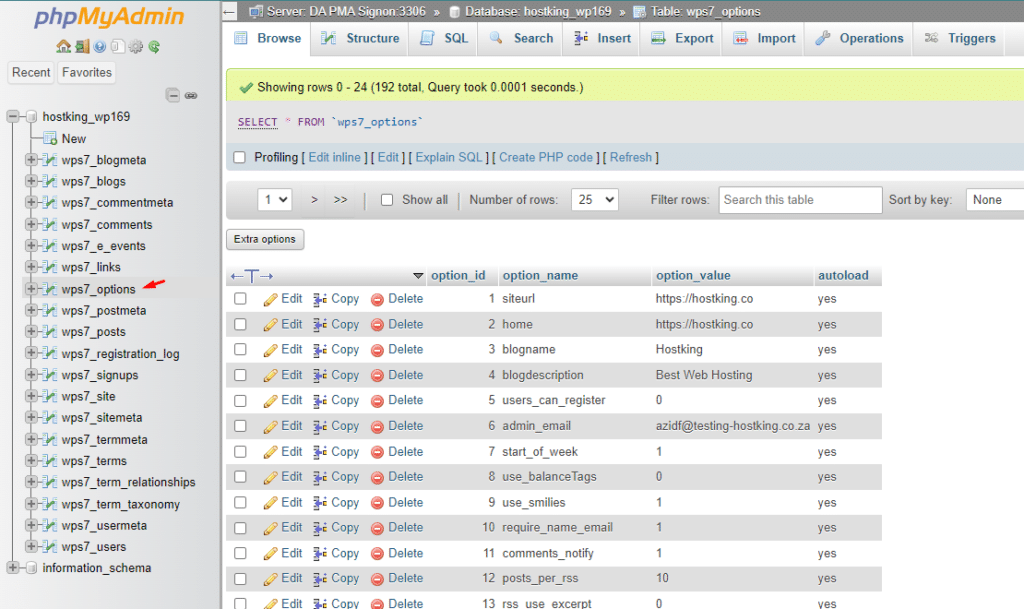
Step 2 – Click “wp_options”
In the phpMyAdmin interface, navigate to the menu on your left and click on the “_options” table specific to your WordPress installation. If you’re managing multiple installations, utilizing the search bar to look for the term “options” might be beneficial.
Keep in mind, the table’s name can start with various prefixes, which serve as identifiers preceding “_options”. Examples include “www_options” or “wp_options” Typically, if you’ve installed WordPress using a 1-click installer, the prefix corresponds to the location of your WordPress site. For instance, in this scenario, the table is named “wp503_options”, indicating that the WordPress site is hosted on the domain hostking.co.
Step 3 – Locate the theme in the table
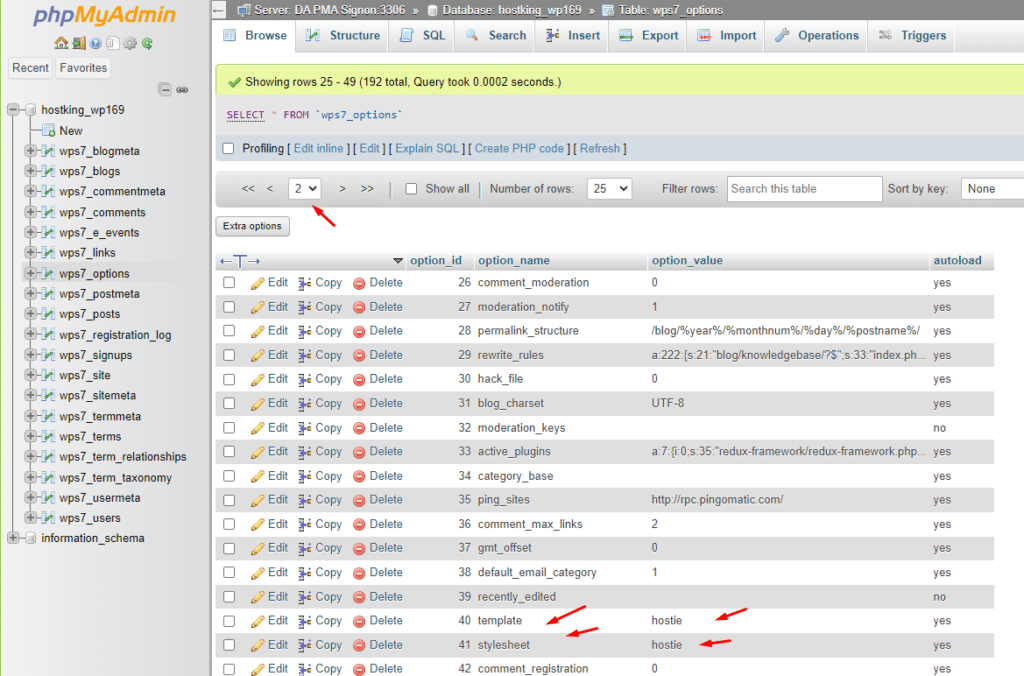
Locate the rows named “template” and “stylesheet” within the options table. These rows are commonly found on page 2 of the table.
Step 4 – Switching to a Default Theme
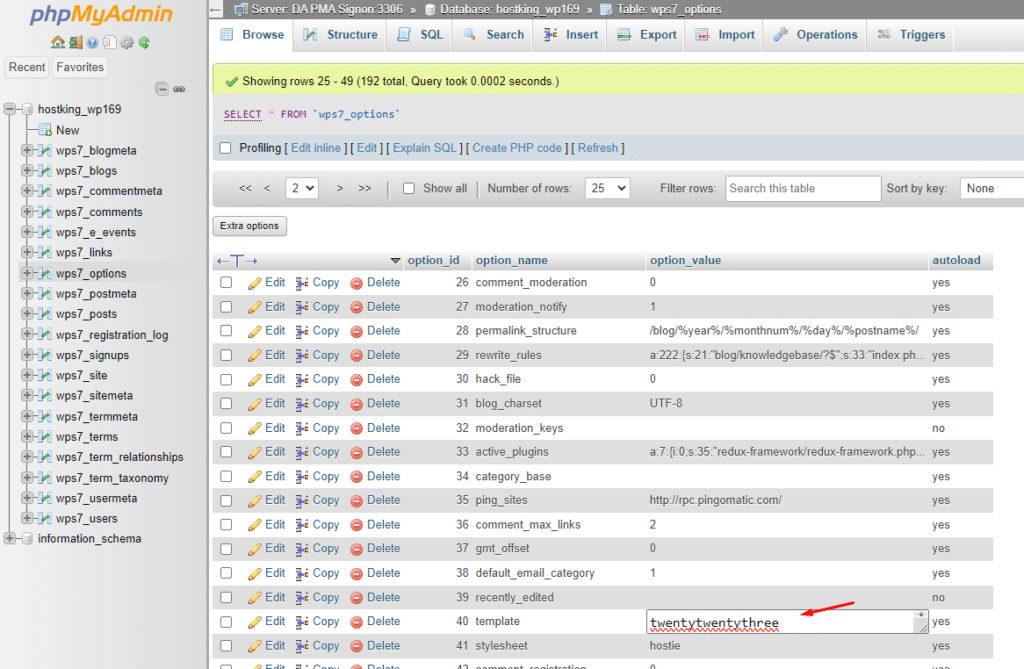
A default theme refers to one of the themes that was available when you first installed WordPress, such as “twentytwentythree” or “twentytwentytwo”. It’s crucial to select a theme that is already installed on your webspace, as the change won’t be effective otherwise.
- Navigate to your File Manager, then go to the
wp-content>themesfolder to see which themes are installed. - In the options table within phpMyAdmin, find and double-click the
option_valuefield for thetemplaterow. - In the
option_valuefield, replace the name of the current theme with the name of a default theme that’s installed on your webspace, like “twentytwentythree”. - Press enter to save the change.
- Repeat the same steps for the
stylesheetrow.
By following these instructions, you’ll change the active theme to a default theme, which should help you regain access to your WP Admin for further management.
Step 5 – Completion
You’ve successfully changed the theme, making your website accessible once again. Now, you’re all set to log in to your WP Admin.