

WordPress Admin Dashboard Lockout? Here’s the Solution
Being locked out of your WordPress admin dashboard can trigger a whirlwind of panic. There are few things as aggravating in the WordPress realm as realizing you’re unable to access your admin area – the very core of your online presence.
This scenario is akin to coming home after a taxing day only to find out you’ve misplaced your keys. Initially, there’s panic, followed by frustration, and eventually, the hunt for a solution begins.
If you’re reading this, you’re likely at the third stage – actively seeking a way out. Fortunately, regaining access to your WordPress dashboard involves a few straightforward steps.
So, it’s time to ease your worries, inhale deeply, stretch your fingers, and gear up as we guide you through the process of becoming an adept WordPress ‘locksmith’.
Recover from a Backup or Establish a New Backup
To start, the swiftest route to resolving your login dilemma and swiftly getting your WordPress site operational again might be to restore from a backup, especially if you’re aware of the precise moment the issue arose.
At Hostking, your WordPress site is automatically backed up every day, allowing for effortless restoration with just a click.
To either create new backups or restore from existing ones, you’ll begin by heading to the Client Area, selecting ‘Manage’ on the relevant service, logging in, navigating to your site name, and then proceeding to ‘Backups’ to choose the desired backup option.
If you’re running a site with data that is constantly changing, say a WooCommerce site or high-traffic blog with a lot of comments, then you’ll want to proceed with the following steps so you don’t lose any data in between.
Since the next steps involve changing important data in your database, we recommend taking a WordPress site backup before proceeding. Since you can’t access WordPress admin dashboard, you have to do this manually.
Most hosts allow you to generate and download a complete backup of your site and database from your control panel. You may need to read your web host’s directions on how to get this done. At Hostking you can create a manual backup or even download a full website (.zip) backup.
If you’re using cPanel, you can do this under the “Backup” tool or “Backup Wizard.”

Once you have a dependable backup in place, you’re ready to move on to the subsequent steps for resolving your problem.
What Causes You to Be Locked Out of the WordPress Admin Dashboard?
You might be wondering, “Why is WordPress not letting me log in?” There are several potential reasons for this issue. Perhaps you’ve recently modified your WordPress code, installed a new plugin or theme, or simply encountered this problem unexpectedly.
If a recent change you made is causing the issue, you likely have a good starting point for troubleshooting.
This guide will walk you through various solutions to address this problem, categorized by the specific error message you’re receiving. This way, you might not need to go through the entire guide.
- If you encounter “This has been disabled”: Look into disabling any login or security plugins.
- If your password isn’t working (and password recovery doesn’t help): Reset your password using phpMyAdmin.
- If you’ve lost administrator privileges: Create a new user with administrator rights.
- If you’re prevented from logging in due to too many failed attempts: Consider disabling your security plugin.
- If you’re facing the white screen of death: Explore common solutions for this issue.
- If you receive “error establishing database connection”: Investigate and resolve database connection issues.
- If you encounter “parse error: syntax error”: Review any recent changes to your code.
When You Can’t Remember Your Custom Login URL
Changing the default admin login URL (domain.com/wp-admin) to a custom one is a widely recommended security measure for WordPress sites. It helps deter hackers and bots from relentlessly attacking your login URL to break into your site.
But, if you find yourself unable to log in to the WordPress admin area because you’ve forgotten the custom URL, you might encounter a message stating “This has been disabled” upon attempting to access your site. Maybe you had saved the custom URL as a bookmark which has now been deleted, or it was stored in your browser history which has since been cleared.

Regardless of the reason behind the wp-admin page not working, if you’re using a plugin like WPS Hide Login or Perfmatters to hide your login URL, one solution is to disable the plugin. This action temporarily reverts your login URL back to its default. If you’re facing an issue with wp-admin not functioning, consider these instructions on how to deactivate a WordPress plugin without having access to wp-admin.
If you’re encountering issues with your password not working and the password recovery process is unsuccessful, it can be a stressful situation. This scenario often leads to feelings of being locked out with no clear path back into your WordPress site. Whether the password recovery email isn’t arriving, or the recovery links are ineffective, you’re left seeking alternative methods to regain access.
In such cases, one of the most effective solutions is to reset your password directly through the database using tools like phpMyAdmin. This approach involves accessing your website’s database, finding the users table, and manually updating your password. It’s a more technical method but can effectively bypass the hurdles of the standard password recovery process.
When Your Password Doesn’t Work (and Password Recovery Fails)
Typically, if you encounter an “incorrect password” message while trying to log into your dashboard, the straightforward remedy is to reset your WordPress password. You can do this by clicking on the “Lost your password” link.
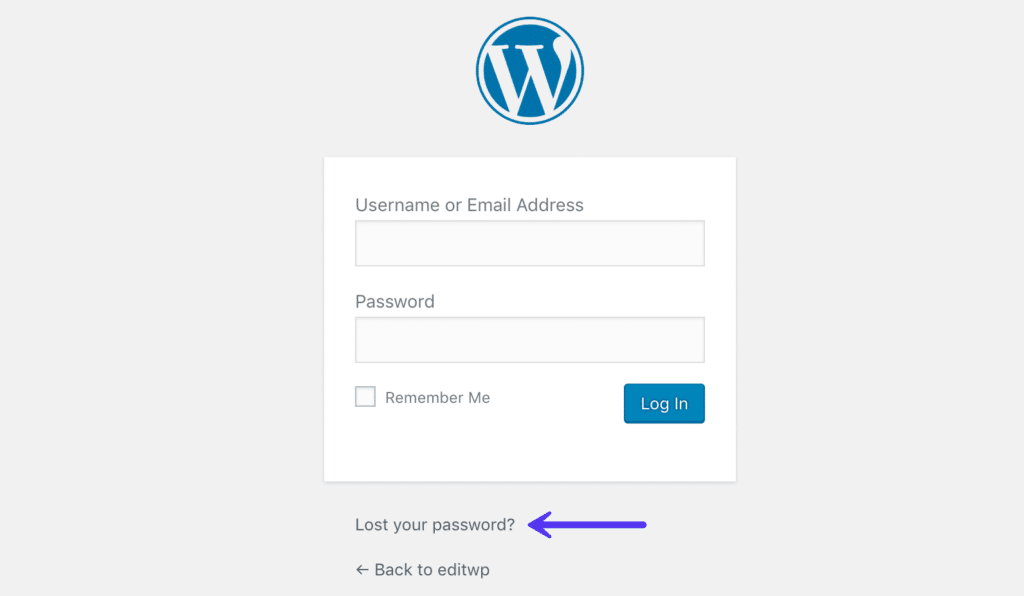
However, there might be instances where you attempt this process but don’t receive the password reset email, possibly due to email delivery issues with your site. In such situations, a viable solution is to reset your password directly in the database.
Reset Password Using phpMyAdmin
If your hosting service includes cPanel, you can locate the phpMyAdmin link within the “Databases” section. If you don’t already have your cPanel login information, you should request these details from your hosting provider.
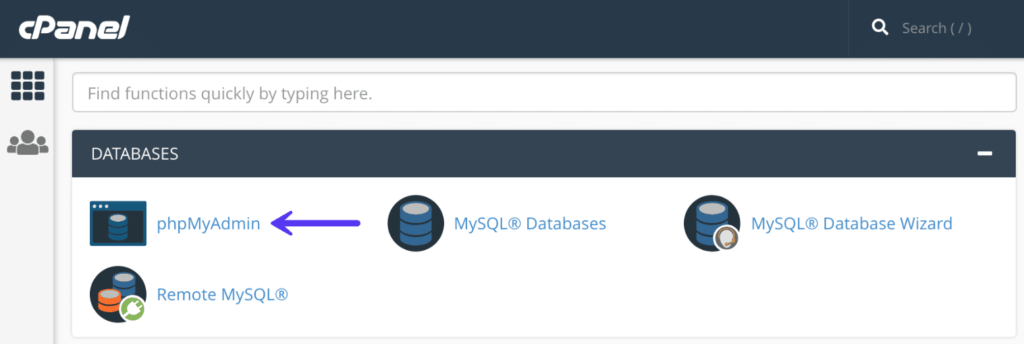
If using any other control panel like Directadmin it is quite similar aswell.
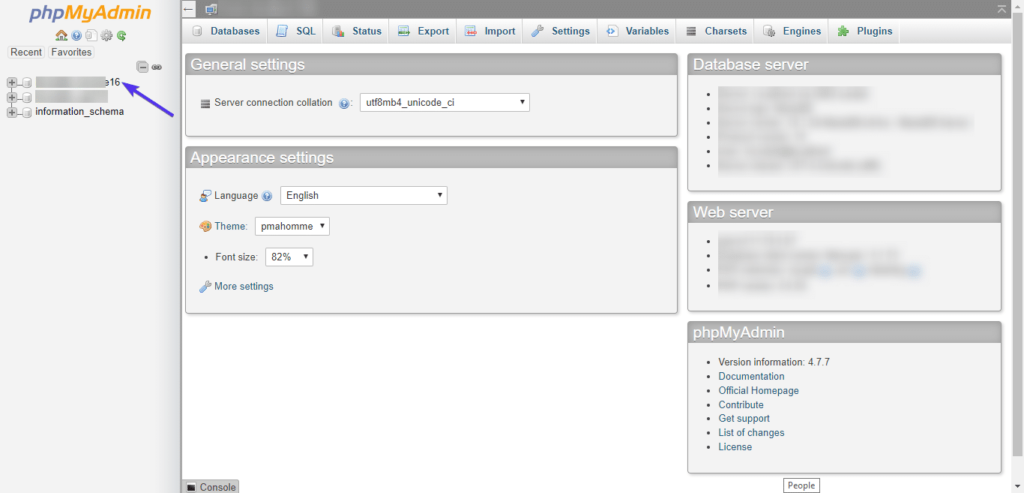
After accessing phpMyAdmin, you’ll find a list of your databases displayed on the left side. Click on the database associated with your WordPress site to open it.
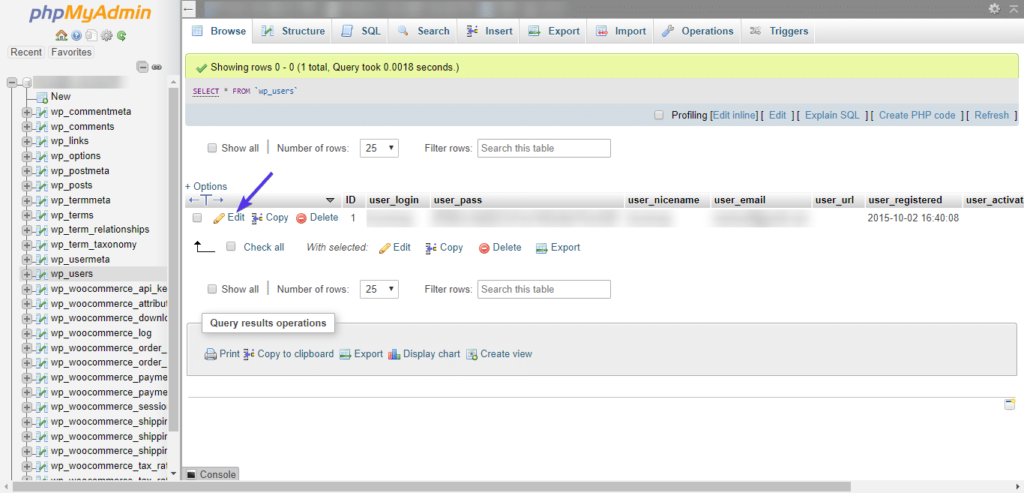
Find the wp_users table within your database and click on “Browse.”
It’s important to note that the prefix might not always be wp_. If you have a custom prefix (for instance, wp503_), then your user table would be named “wp503_users“.
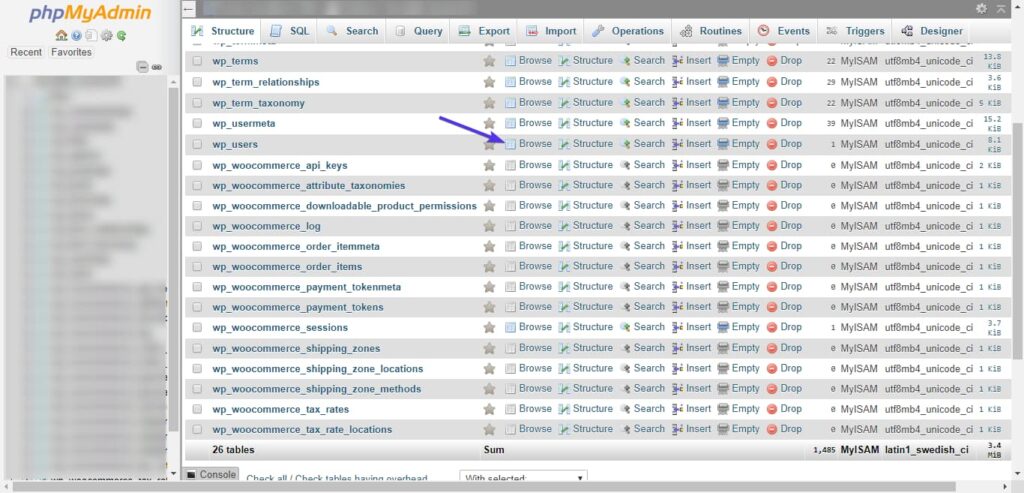
Next, find your admin user and click Edit.
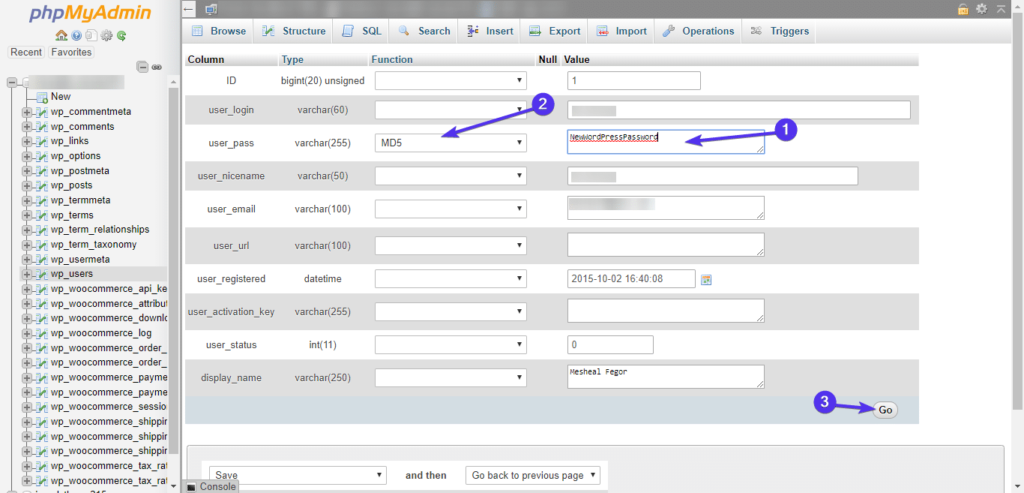
In phpMyAdmin, all the details for the user will be presented in a form. To update your password, find the user_pass input field, clear the existing value, and enter your new password (make sure to save it somewhere secure).
Ensure to select MD5 from the function dropdown menu next to the user_pass field. This step is crucial as it hashes your new password for security. After completing these steps, click on “Go” to finalize the update.
Now login to your WordPress admin dashboard with your new password.
Summary
This guide has explored the key issues that can prevent you from accessing your WordPress admin dashboard, along with actionable steps to help you swiftly regain access to your site.
Ideally, these insights have enabled you to quickly resolve your problem and reclaim control over your dashboard. However, if challenges persist, consulting additional resources on common WordPress errors and their fixes might provide the solution you need.
Should you have resolved your issue using different methods not mentioned in this guide, we encourage you to share your experience in the comments below. Your insights could prove invaluable to others facing similar obstacles.